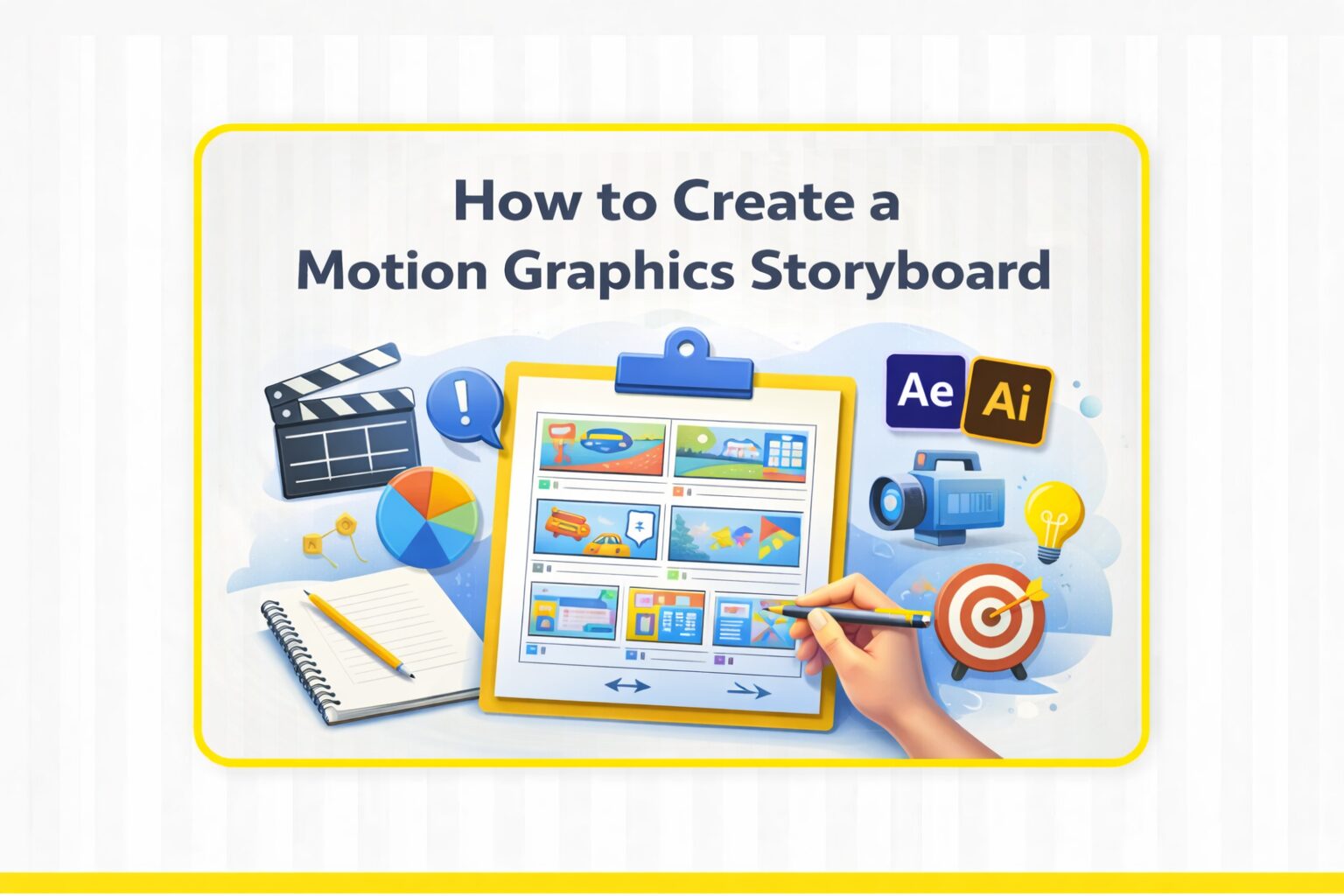
How to Create a Motion Graphics Storyboard (Step-by-Step Guide)
Creating a motion graphics storyboard is one of the most important steps in any animation project. Before any design or animation begins, the storyboard acts as a clear visual plan that helps organize ideas, structure scenes, and guide the entire production process.
Whether you’re working on an explainer video, a social media animation, or a branding project, a well-built storyboard ensures that your message is clear, your visuals are aligned, and your animation flows smoothly from start to finish.
In this guide, you’ll learn exactly how to create a motion graphics storyboard step by step.
What Is a Motion Graphics Storyboard?
A motion graphics storyboard is a visual outline of your animation. It breaks your idea into scenes and frames, showing how each part of the story will appear and transition over time.
Instead of jumping directly into animation, the storyboard helps you:
- plan your visuals
- structure your message
- identify gaps or issues early
- communicate your idea with clients or team members
Think of it as a blueprint for your animation.
Step 1: Define Your Message and Goal
Before sketching anything, you need to be clear about what you’re trying to communicate.
Ask yourself:
- What is the purpose of this animation?
- What message should the viewer understand?
- What action do you want them to take?
For example:
- Explainer video → simplify a concept
- Marketing video → promote a product
- Social media content → grab attention quickly
A clear goal makes the storyboard more focused and effective.
Step 2: Understand Your Audience
A strong storyboard is built around the audience, not just the idea.
Consider:
- Who is watching this?
- What do they already know?
- What style will engage them most?
For example:
- Younger audiences → faster pacing, bold visuals
- Professional audiences → clean, structured design
- General audience → simple, clear storytelling
The more you understand your audience, the better your visuals will connect.
Step 3: Break Your Idea into Key Scenes
Now it’s time to turn your idea into a structure.
Divide your concept into clear scenes, such as:
- Introduction (hook)
- Main idea or explanation
- Supporting visuals or examples
- Ending or call-to-action
Each scene should represent one clear idea.
This step makes your animation easier to follow and prevents confusion later.
Step 4: Sketch Your Storyboard Frames
Start creating simple sketches for each scene.
You don’t need detailed drawings — rough sketches are enough.
Focus on:
- composition (what appears in the frame)
- layout (where elements are placed)
- main action
At this stage, clarity is more important than beauty.
A simple sketch that explains the idea is better than a detailed but confusing one.
Step 5: Add Notes and Descriptions
Your storyboard should not rely on visuals alone.
Under each frame, add notes explaining:
- what is happening in the scene
- what text appears
- how elements move
- any important details
Example:
- Text fades in
- Icon moves from left to right
- Camera zooms in
- Scene transitions with slide effect
These notes help animators understand your vision clearly.
Step 6: Plan Transitions and Flow
A good storyboard is not just about individual scenes — it’s about how they connect.
Make sure:
- scenes follow a logical order
- transitions feel smooth
- the story flows naturally
Common transitions:
- fade in/out
- slide
- zoom
- cut
Smooth transitions improve the overall viewing experience and make your animation feel more professional.
Step 7: Think About Motion and Timing
Motion is what makes motion graphics powerful.
At this stage, define:
- how elements move
- how fast they move
- how long each scene lasts
For example:
- fast motion → energetic, dynamic feel
- slow motion → calm, focused tone
Timing affects how the audience understands and feels your animation.
Step 8: Choose the Right Tools
You can create a storyboard using different methods depending on your workflow.
Digital tools:
- Adobe Illustrator
- Photoshop
- Figma
- Storyboard software
Traditional methods:
- paper and pencil
- markers and sketchbooks
Choose what helps you think clearly and work efficiently.
Step 9: Review and Improve Your Storyboard
Before moving to animation, review your storyboard carefully.
Check:
- Is the message clear?
- Is the flow logical?
- Are scenes easy to understand?
- Is anything missing or unnecessary?
If possible, share it with:
- a team member
- a client
- another designer
Feedback can help you spot issues early and improve the final result.
Step 10: Finalize and Prepare for Animation
Once everything is clear, finalize your storyboard.
Make sure:
- all scenes are complete
- notes are clear
- timing is defined
- transitions are understood
Now your storyboard is ready to be handed off to the animation stage.
Common Mistakes to Avoid
Even a good idea can fail if the storyboard is weak.
Avoid:
- jumping into animation without planning
- unclear or messy scenes
- lack of notes or explanations
- too many ideas in one frame
- ignoring flow and transitions
A clean, simple storyboard is always more effective.
Final Thoughts
Creating a motion graphics storyboard is not just a technical step — it’s a creative process that shapes the entire animation.
When done correctly, it helps you:
- save time during production
- avoid confusion
- improve storytelling
- deliver better final results
The goal is not to create perfect drawings, but to build a clear visual plan that brings your idea to life.